Minimalist Home Screen: A Calm One-Page Setup for iPhone and Android
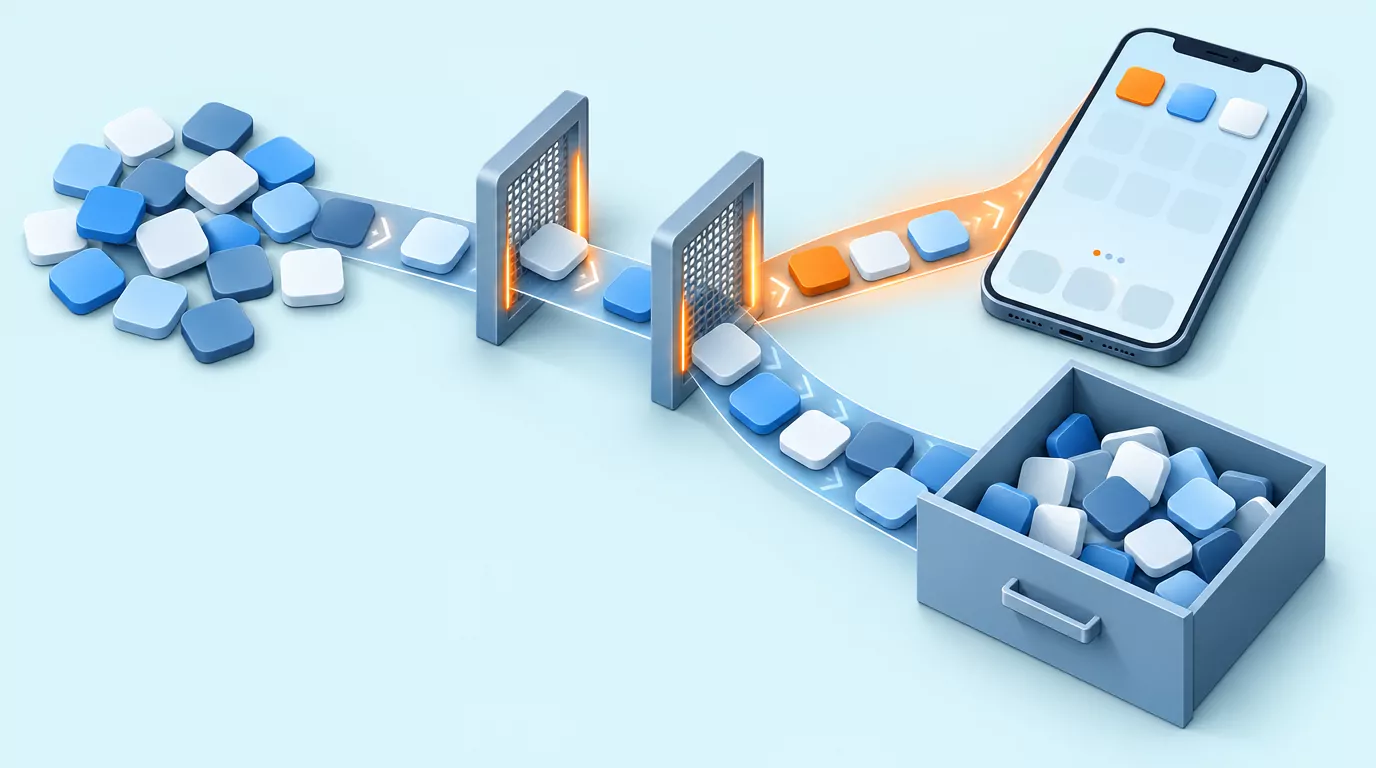
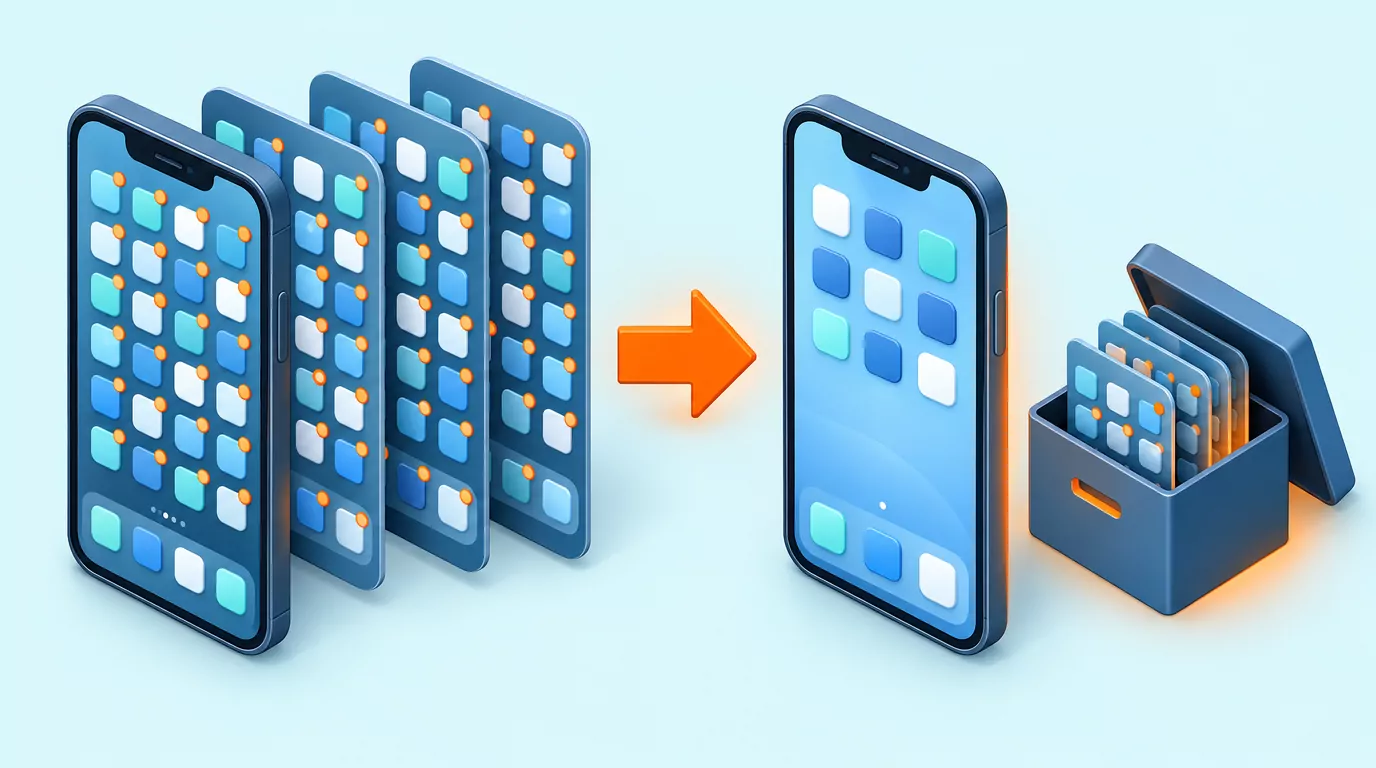
A minimalist home screen is one page of the apps you use every day, with everything else in the App Library on iPhone or the app drawer on Android. Hide the extra pages, send new downloads straight to the library, turn badges off and pick a quiet wallpaper. Nothing gets deleted.
Everything below uses built-in settings on iPhone, Pixel and Samsung phones, with nothing to buy.
What a minimalist home screen is, and what it is not
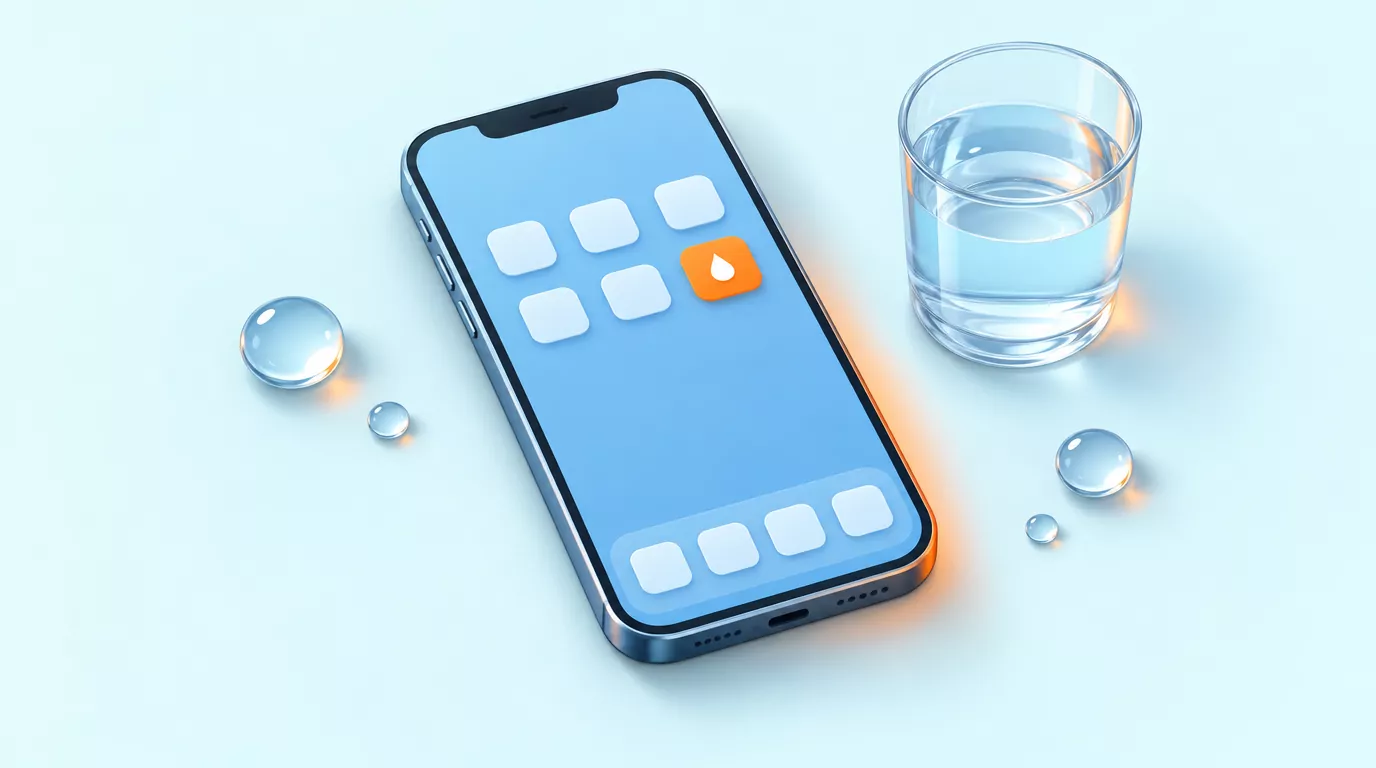
A minimalist home screen holds the single-purpose tools you reach for most days. Everything else stays one swipe or one search away, so unlocking the phone shows a short list of jobs, not a wall of invitations.
It is not deleting apps, a dumbphone or a project that needs a widget pack. Removing an app from the Home Screen keeps it installed, data and all. Simple living takes the same idea beyond the phone.
Choose what earns a place on the one page
Ask two questions of every app. Do I open it most days? And is it a tool that finishes a job and lets me go, or a feed that keeps going?
Tools that usually pass: Phone, Messages, Camera, Maps, Calendar, Notes, a wallet or banking app, and one small daily habit app. Feeds, shopping, news and games go to the library, where they still work but stop greeting you at every unlock.
Write the list on paper first, since a pen is easier to be honest with. Aim for roughly a dozen apps or fewer, plus the dock. That number is a guide, not a rule.
How to organize apps on iPhone and Android
To organize apps on iPhone automatically, swipe left past your last page: the App Library already sorts every app into categories. The Pixel app drawer is already A to Z, while the only alphabetical option on iPhone is a full reset (see the FAQ).
Enter edit mode
On iPhone, touch and hold the Home Screen background until the icons jiggle. To finish, tap the background, or press the Home button on iPhone SE (Apple's guide). On Pixel, touch and hold an app to drag it. On Samsung, touch and hold an empty space for the editor.
Move several apps at once
On iPhone, drag one app in jiggle mode and tap others with a second finger to stack them. On Samsung, touch and hold an app, tap Select, then tap the rest. Pixel Help only describes moving apps one at a time.
Use the dock for daily constants
The iPhone Dock stays put on every page, so give it your three or four most-used apps. On Pixel, turn off Suggestions on Home screen (touch and hold an empty space > Home settings > Suggestions) before adding your own favorites, per Pixel Help. Samsung's favorites row holds up to five apps.
Name folders by verb
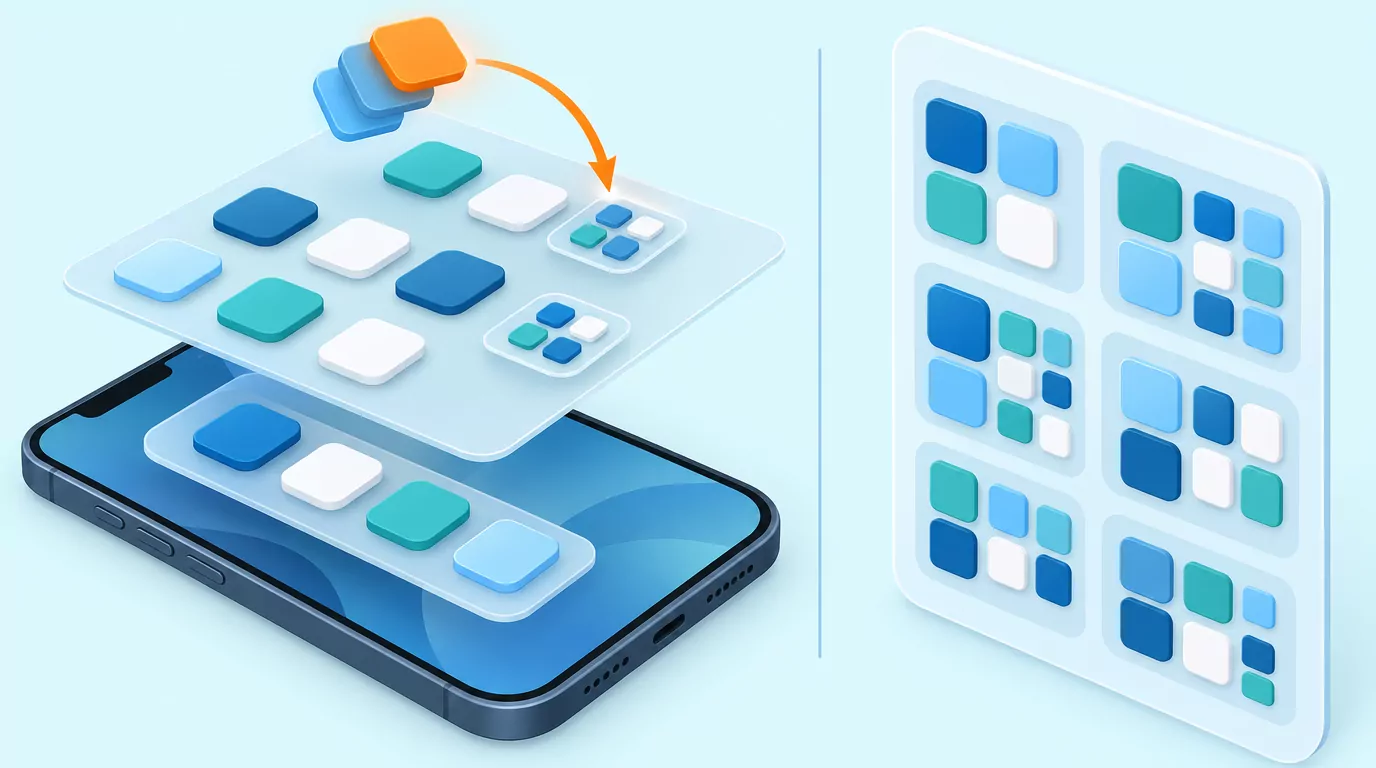
Drag one app onto another to make a folder, then rename it with a verb, not a category: Pay, Go, Read, Listen, Write. Keep two or three short folders, since a folder of 40 apps is a second Home Screen in disguise.
Set up a one-page minimalist home screen on iPhone
Each step for a minimalist iPhone home screen is a built-in setting. Older iOS versions may word a step differently.
- Remove apps from the Home Screen. Touch and hold the app > Remove App > Remove from Home Screen, not Delete App. It stays in the App Library.
- Hide the extra pages. Touch and hold an empty area, tap the dots near the bottom, tap the circle under each page to hide, then tap Done. Hidden pages come back the same way.
- Send new downloads to the library. Settings > Home Screen & App Library > App Library Only.
- Turn badges off. Settings > Notifications > choose the app > turn off Badges. Keeping badges for people, like Messages, is fine. For a fuller clear-out, see too many notifications.
- Optional on iOS 18 or later: quieten the icons. Touch and hold the background, tap Edit, then Customize. Only the large size hides app names. Dark, Tinted or Clear (iOS 26 or later) icons tone the colours down, as Apple Support's short video on icon styles shows.
- Pick a calm Home Screen wallpaper. Settings > Wallpaper > Add New Wallpaper, choose one, tap Add, then Customize Home Screen. A plain colour or Blur keeps icons easy to read.
Set up a one-page minimalist home screen on Android
For a minimalist Android home screen, labels vary by maker and version, so these paths cover Pixel and Samsung.
- Remove apps from the Home screen. Touch and hold the app and drag it to Remove, which takes it off the Home screen only; Uninstall takes it off the phone (Pixel Help). On Samsung, check that Settings > Home screen > Home screen layout is not set to Home screen only.
- Get down to one page. On Pixel, a Home screen disappears once its last item is gone. On Samsung, touch and hold an empty space, swipe to the page and tap the Delete icon (Samsung Support).
- Stop new apps landing on the Home screen. Neither vendor documents a switch. If Home settings offers to add new app icons, turn it off; otherwise remove new icons as they appear.
- Turn notification dots off. Settings > Notifications > Notification dot on app icon is one switch for every app. On Samsung, touch and hold the Home screen > Settings > App icon badges.
- Pick a calm Home screen wallpaper. Touch and hold the Home screen > Wallpaper & style on Pixel, or Wallpaper and style on Samsung. If asked, apply it to the Home screen only.
- Optional on Samsung: lock the layout. Touch and hold an empty spot > Settings > Lock Home screen layout stops accidental rearranging.
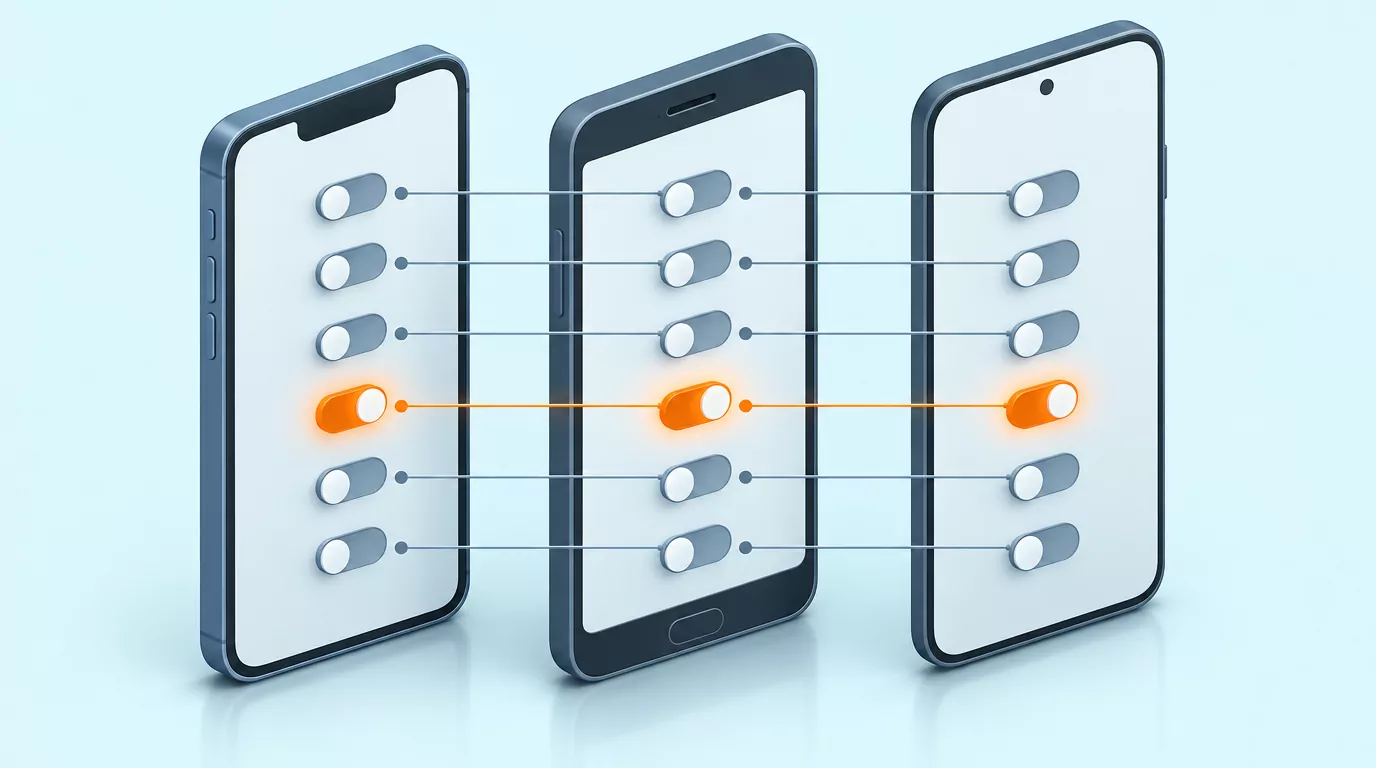
Settings at a glance
| What it does | iPhone | Android (Pixel) | Android (Samsung) |
|---|---|---|---|
| Take an app off the Home Screen | Remove from Home Screen | Drag to Remove | Touch and hold > Remove |
| Hide or remove extra pages | Tap the page dots, untick pages | Empty the page | Delete icon in the editor |
| Keep new apps off the Home Screen | App Library Only | Varies by version | Varies by version |
| Turn badges or dots off | Badges, per app | Notification dot on app icon | App icon badges |
| Home Screen wallpaper only | Customize Home Screen | Wallpaper & style | Wallpaper and style |
| Lock the layout | No built-in lock | Varies by version | Lock Home screen layout |
Widgets, hidden labels and launchers: optional extras
Many setups online lean on widget packs, transparent-widget tricks and launcher apps. None of it is required, and one system widget, like a clock, is plenty. Hidden labels are a look, not a requirement, and nothing here needs a purchase or another app.
Keeping it at one page
- When a new icon or a second page appears, move it to the library straight away.
- Open rarely used apps with search instead of browsing for them.
- Revisit the page when your routine changes, not on a schedule.
Frequently Asked Questions
Can you turn an iPhone into a minimalist phone?
Mostly. Assistive Access strips the layout back but is built for accessibility, so try it first. Color Filters can make your iPhone grayscale, and a Focus can show a Home Screen page you choose. Android's Digital Wellbeing has bedtime grayscale and Focus mode.
Can I hide apps on my iPhone?
Yes. Removing an app from the Home Screen keeps it in the App Library. On iOS 18 or later, touch and hold it > Require Face ID > Hide and Require Face ID to move it to a Hidden folder.
How do I delete unused apps?
On iPhone, touch and hold > Remove App > Delete App. On Android, drag it to Uninstall. iPhone can also offload unused apps (Settings > Apps > App Store), and Google Play can archive them if you opt in.
What is the best home screen layout?
Put your most-used apps in the bottom rows, where a thumb reaches easily. Leave the top third empty or give it one system widget, then order the rest by time of day.
Do I need a minimalist launcher app?
No, the built-in settings above get most people there. If you try one, check its App Store privacy label or Google Play data safety section and what access it requests.
Does a minimalist home screen reduce screen time?
It can help: a quiet page removes cues and adds a step before the feeds. It will not do the work for you, and no reliable figure exists. Compare Screen Time or Digital Wellbeing for a week before and after.
How do I reset my iPhone Home Screen layout?
Unhide pages the way you hid them. A full reset is Settings > General > Transfer or Reset iPhone > Reset > Reset Home Screen Layout. It removes your folders and sorts downloaded apps A to Z after the built-in ones, deleting nothing.
Keep one small daily app on the page
If one small icon is going to earn its place, let it be one that asks for a few seconds and gives the day's total back.
In Water Goose you log a drink in three steps: choose a drink, swipe to the amount, tap one clear button. Entries, goals, unit preference, custom amounts, onboarding profile and reminder preferences are stored locally on the device, and no account is needed to keep a hydration history.
The privacy policy is plain about the rest: "The app shows no ads." "We don't sell personal data."
Water Goose is free to download and look around; saving drinks, editing your history and changing your goal, units or quick-add amounts need Water Goose Plus, sold as a monthly subscription or a one-time purchase. The icon sits in the dock or on the page like any other app.
For how logging works, see how to track water intake. An icon in plain sight also works as a cue, which how to remember to drink water covers. If you would rather keep this off the phone, the printable water tracker does the job on paper.
This is general wellness information, not medical advice.
Water Goose is on the App Store for iPhone and on Google Play for Android.