Too Many Notifications? How to Keep the Few That Earn Their Place
If you get too many notifications, the fix is an audit, not a mass mute. Sort every alert into three buckets: a person needs you, you asked for it, or an app wants your attention. Silence the third bucket, give the first two set hours, and keep only the reminders you scheduled yourself.
This guide walks through that audit in one sitting, with iPhone examples. It also covers what most guides skip: setting up the reminders you keep, like a nudge to remember to drink water, so they help.
Why your phone got so loud, and why that is not a character flaw
Nobody chooses a phone that buzzes all day. It happens one tapped Allow at a time, and each app treats that single yes as permission forever.
For many apps, alerts are the business model. A notification is a cheap way to pull you back, and return visits are what get counted. The streak nag and the flash sale are working as designed, just not for you.
People are pushing back. In the Reuters Institute Digital News Report 2025, 43% of people who get no news alerts had switched them off on purpose. Most said there were too many or they were not useful.
So a loud phone is not a failure of self-control. You said yes to a lot of polite questions, and the fix is to answer them again with a rule.
The three-bucket audit for too many notifications
A notification audit needs one question per alert: who actually wants this to reach me? There are only three honest answers, and each gets a different setting. Call it digital minimalism at its most practical.
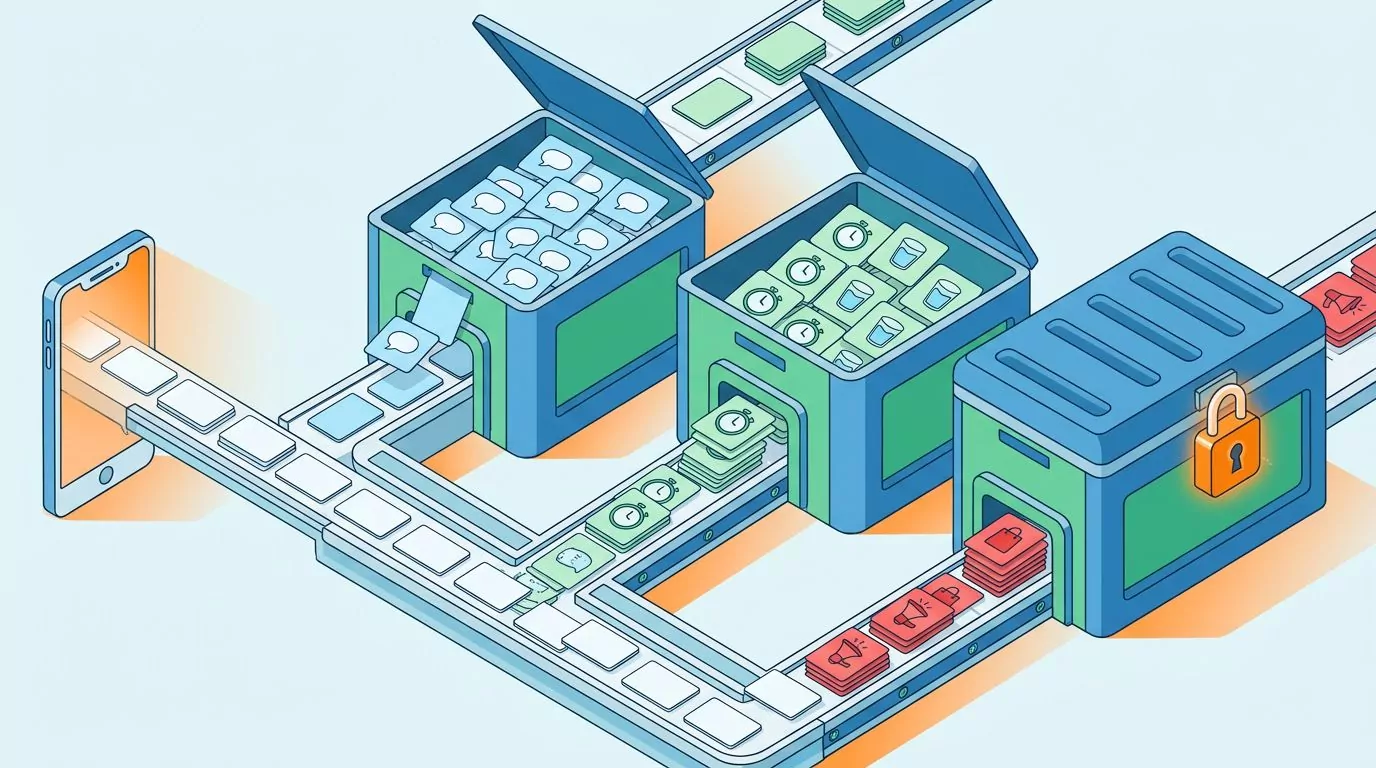
Bucket one: a person needs you
Calls, direct messages and calendar changes from real people. These stay on, but they still get hours, because a message at ten at night can usually wait.
Worked example, the group chat: a busy family chat can run to dozens of messages a day. Mute the thread but keep mentions and direct replies on, which many messaging apps allow. Then leave it off the allowed list in a work Focus, so it reaches you in the evening.
Bucket two: you asked for this
Timers, delivery updates, bill due dates, login codes and habit nudges like drink reminders. These stay, but check how often they fire. That advice covers habit and convenience reminders only; leave medication or care reminders exactly as they are.
Worked example, the habit reminder: a daily stretch nudge fires at 9:00, right on your commute, and after two weeks you swipe it without reading. Move it to a moment you can act on, like ten minutes after you reach your desk. If you still dismiss it five days running, delete it.
Bucket three: an app wants attention
Recommendations, streak nags, "we miss you" messages and promotions. Nobody asked for these, so they get turned off, not tuned.
Worked example, the shopping app: turn off sale alerts and abandoned cart nudges in the app's own settings, but keep the delivery update. That one alert now does a job you asked for, so it moves into bucket two.
Here is how common alerts sort out. Quiet means no sound or banner, Summary means a scheduled bundle, and Allowed means it can reach you inside your hours.
| Alert type | Bucket | Setting |
|---|---|---|
| Calls and direct messages | A person | Allowed |
| Busy group chat | A person | Quiet, mentions allowed |
| Calendar changes | A person | Allowed |
| Login codes | You asked | Allowed |
| Delivery updates | You asked | Allowed |
| Timers and alarms | You asked | Allowed |
| Bill due dates | You asked | Allowed |
| Drink and habit reminders | You asked | Allowed, in active hours |
| News alerts | An app | Summary |
| Newsletters | An app | Summary |
| Likes and follows | An app | Off |
| "Recommended for you" | An app | Off |
| Streak nags and "we miss you" | An app | Off |
| Sales and cart nudges | An app | Off |
Cutting bucket three in one sitting
The rule works on any phone, because the question is the same everywhere. If you want to know how to reduce notifications on iPhone, Apple's guide to changing notification settings documents each step below. Set aside twenty minutes and go top to bottom once.
- Open the full list. Go to Settings, then Notifications. Every app that can alert you sits under Notification Style.
- Ask the bucket question for each app. If the answer is bucket three, tap the app and turn off Allow Notifications.
- Turn off Badges for anything that is not a person. A red number on a shopping app is a to-do list you never wrote.
- Bundle the in-between. Turn on Scheduled Summary, pick one or two times a day, and add apps like news.
- Go into the app when the switch is too blunt. Tap Customize Notifications if it appears, or open the app's own notification settings.
You will miss a few, and that is fine. When a stray alert lands later, swipe left on it, tap Options, then choose Turn Off, or Mute for Today if you are unsure.
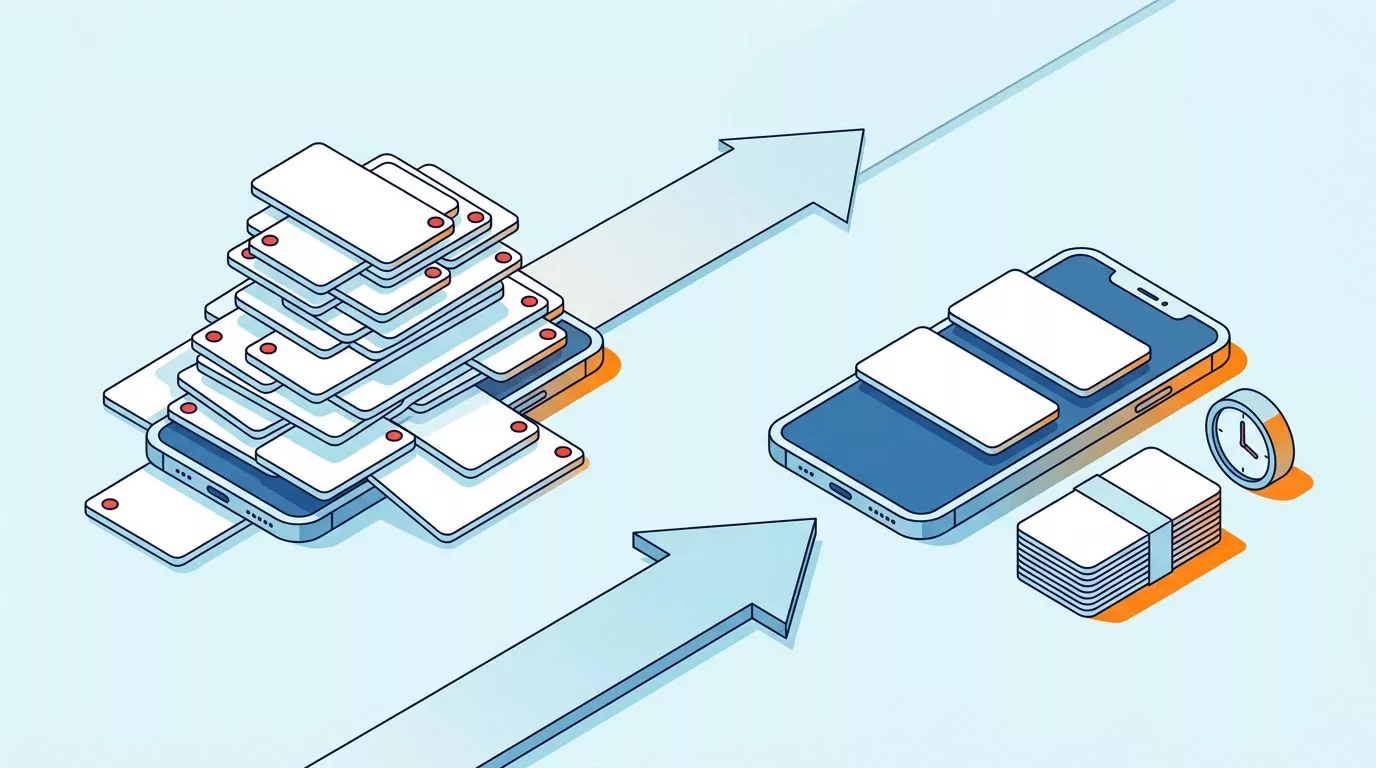
Notification anxiety, the everyday version
Notification anxiety, in everyday terms, is the low hum of a phone that might need you. A buzz arrives, you check, it is nothing, and ten minutes later you check again. It is not a diagnosis, just a loop, and loops can be broken.
Even ignored alerts cost something. In one study, a phone notification disrupted people's performance on a task that needed attention, even when they never touched the phone.
Badges keep the loop going between buzzes. Many people also know the phantom buzz: a vibration you feel in your pocket while the phone sits on the desk. Both tend to fade as the phone gets quieter.
Notification overload, app fatigue, notification fatigue: the names differ, but the feeling is the same. Four changes do most of the work for your digital wellbeing:
- Sound off by default. Turn off Sounds for every app except calls and messages from people.
- Badges off. Keep them only where a count helps, like missed calls.
- Quiet delivery. For apps you keep but do not need live, turn off Banners and let alerts wait in Notification Center.
- One Focus for work hours. Allow chosen people and apps, then tap Add Schedule. Apple's guide to setting up a Focus walks through it.
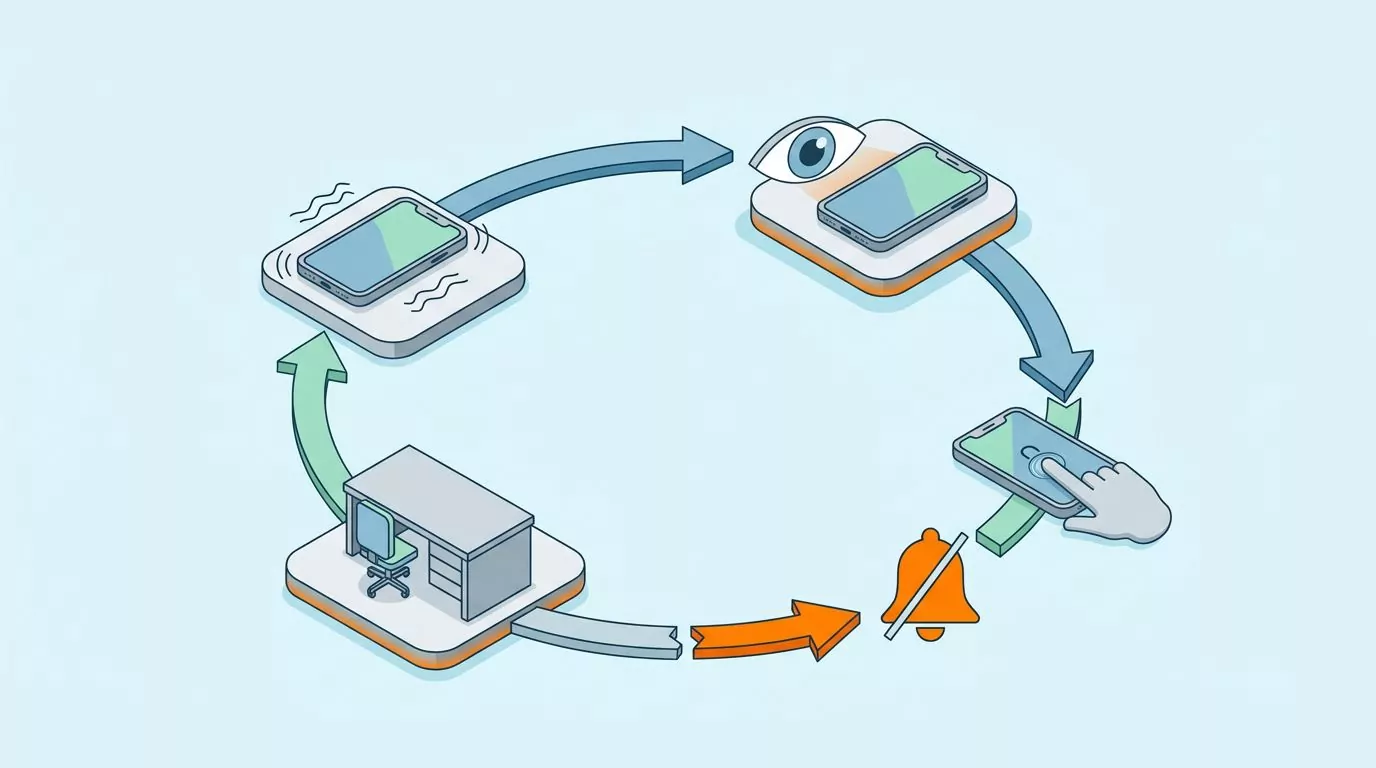
Setting the few reminders you keep so they help instead of nag
Cutting is only half the job. The reminders you keep are ones you chose, so set them up to earn their place. Skip this step and you get reminder fatigue.
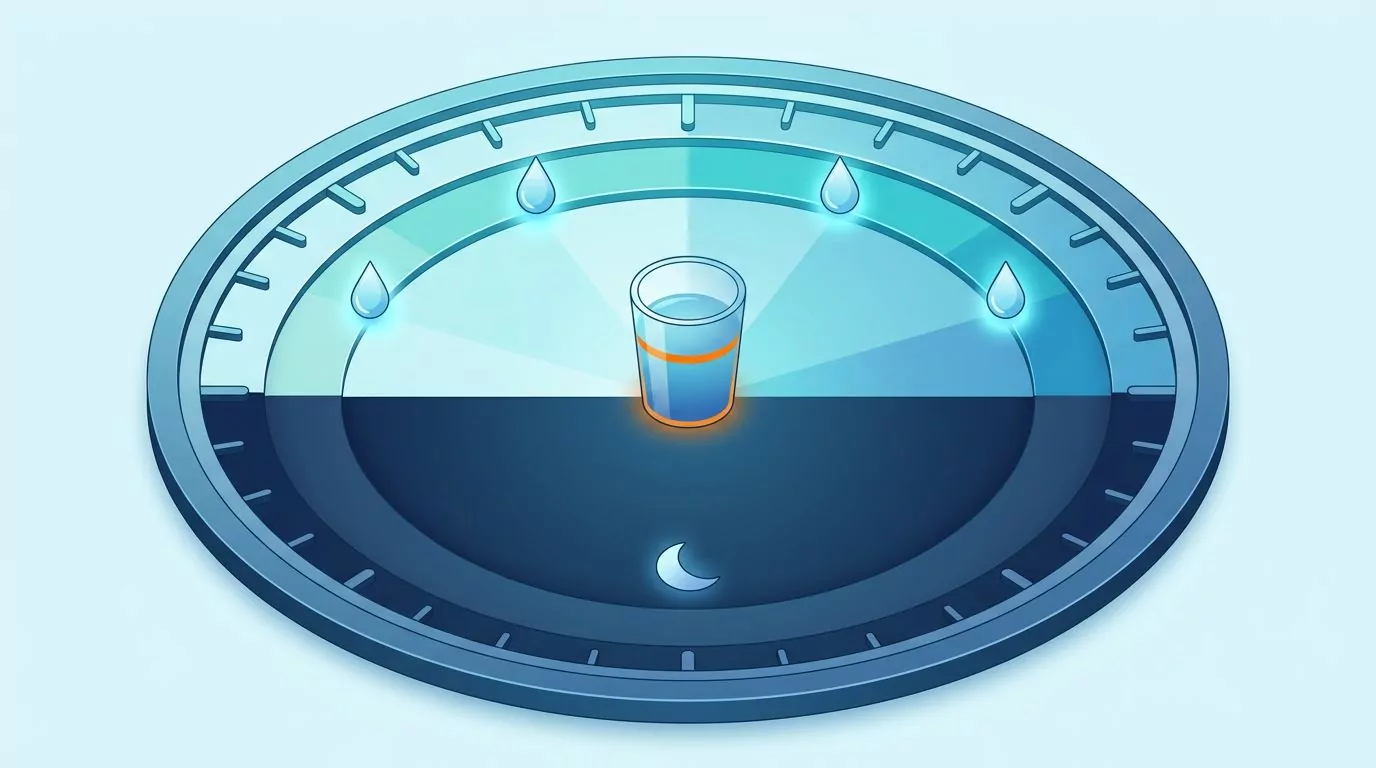
Give every reminder active hours
A reminder that fires at 11:40 pm teaches you one thing: reminders can be ignored. That lesson sticks during the day too. Give every reminder a start and end time inside the hours you can act.
Drink reminders need this most. A late nudge can clash with sleep, which is why drinking water at night needs its own plan. Tying the first glass to your morning routine also saves a reminder.
Pick a frequency you would tolerate from a polite colleague
Reminder fatigue comes from cadence, not any single alert. A colleague who taps your shoulder every hour is background noise by lunch, and so is an hourly alert.
Drink reminders fall into this trap because of the idea that you need a set number of glasses. That idea is looser than it sounds, so there is no need to chase it every hour. On a hot day one extra nudge can make sense, and hydration in hot weather covers how much more to drink.
If you dismissed a reminder most days this week, lower the frequency or move the time.
A drink reminder that behaves
It helps to know where a reminder comes from. A locally scheduled reminder is set on your phone from the times you picked. A server-pushed notification comes from a company, which decides what to send and when.
Water Goose, a hydration tracker available for iPhone, keeps reminders simple. They are optional: you choose your active hours and how often they fire, allow notifications, and they are scheduled locally on the device. Your hydration history stays on the device too, with no account needed, as the Water Goose privacy policy sets out.
If you would rather not install anything, the Water Goose site has an Online Water Reminder page. Whatever you use, set the hours first, then a frequency you can live with.
A five-minute monthly re-audit
Notifications creep back as new apps arrive and updates add alert types. A short monthly check keeps your phone where you left it.
- New apps default to off. Tap Don't Allow unless the app clearly belongs in bucket one or two.
- Check what crept back. Scroll Settings, then Notifications, for sounds or badges you did not turn on.
- See who spoke most. Find the app that sent the most this week and ask the bucket question again.
- Retune one reminder. Change the time or frequency of the one you dismiss most.
- Delete one unused app. The quietest notification comes from an app that is gone.
Frequently Asked Questions
How many notifications a day is too many?
There is no universal number. A better test is recall: if you cannot say what your last five alerts were about, most of them were not needed.
Should I just turn off all notifications?
Usually not. Turning everything off tends to swap alerts for constant checking. Silence bucket three, keep people and the reminders you chose, and give both set hours.
What is notification anxiety and how do I calm it?
In everyday terms, it is the itch to check your phone in case something needs you. Sounds off, badges off and a scheduled Focus for work hours calm most of it.
Do I need a third-party app to manage notifications?
For most people, no. The phone's own settings and each app's notification options cover the whole audit, and a manager app is one more thing that wants your attention.
What is reminder fatigue and how do I avoid it?
It is when a reminder fires so often, or at such bad times, that you stop reading it. Give each reminder active hours and a low frequency, and move or delete any you keep dismissing.
Will I miss something important if I silence most alerts?
Not if you sort before you silence, because people and the things you asked for stay on. On iPhone, apps that support Time Sensitive notifications can also be set to reach you during a Focus.
Keep the few that earn their place
A quieter phone does not come from willpower. Sort every alert by who wants it, cut the ones that only serve the app, and give the rest hours.
This article is general wellness information, not medical advice.
If you want a drink reminder that follows the same rules, Water Goose is available for iPhone. You can find Water Goose on the App Store and turn reminders on only if you want them.