How to Stop Doomscrolling: Small Exits From an Endless Feed
To stop doomscrolling, change the setup rather than relying on willpower. Check your Screen Time or Digital Wellbeing report to see when and where it happens. Then add friction to the one or two apps that start it, decide on a stopping cue before you open them, charge the phone outside the bedroom, and keep a small replacement action ready.
You unlock the phone to check one thing. Forty minutes later you are deep in a stranger's argument about something you never cared about. That is not a character flaw. Below is how to stop doomscrolling with exits that are small and boring on purpose, because boring still works at 11pm.
What is doomscrolling?
The Cambridge Dictionary defines doomscrolling as spending a lot of time on your phone or computer reading bad or negative news. It even labels the word as humorous, though the joke wears thin by the second hour.
In everyday use, it now covers any feed you keep scrolling even though it leaves you feeling worse, from news to short videos. The tell is how you feel afterward, not the minutes.
The Mental Health Foundation lists common signs, lightly adapted here:
- Scrolling for much longer than you meant to.
- Checking for updates several times an hour.
- Feeling anxious, tense or low afterward.
- Struggling to switch off once the phone goes down.
None of these is a diagnosis, just a sign that the feed takes more than it gives.
Why the feed is so hard to put down
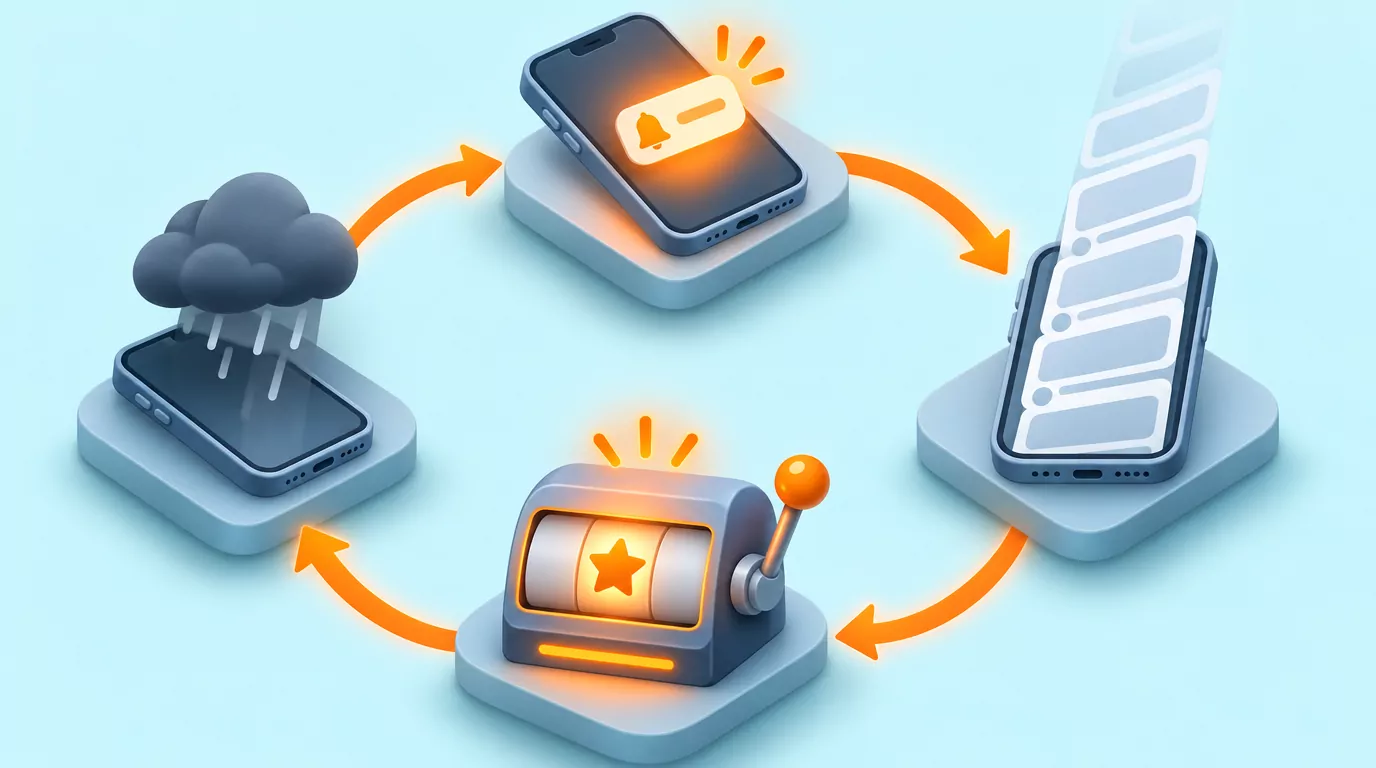
There is no last page
A book has chapters, a TV episode ends, and a newspaper has a back page. A feed has none of these, so the natural stopping point is missing and you have to bring your own.
The next good post is always one swipe away
Most swipes deliver nothing much, then something funny or alarming shows up, and you cannot tell which swipe it will be. That not knowing keeps you checking, the way a slot machine keeps people pulling the lever. Many feeds also learn from what you engage with, so lingering on alarming posts can bring more of them.
Your brain treats bad news as urgent
In a Mayo Clinic release, psychologist Craig Sawchuk explains that our brains are wired to orient toward novelty and threat. Once negativity rises, he says, it works like a lens and pulls your attention toward more of the same. Both the release and the Mental Health Foundation note that doomscrolling often starts with a fair goal: wanting to understand what is going on.
Boredom or a task you would rather avoid can start it too. Either way, willpower is arguing with a design that has no end, and changing the setup is easier.
Measure first: find where the scrolling happens
Before changing anything, collect a week of data. It shows the two or three moments that matter. Look at pickups or times opened, which app you open first and how many notifications arrive, not only total minutes.
On iPhone: Screen Time
These steps follow Apple's guide to setting up Screen Time for yourself on iOS 27. Menu names differ on older versions, and the guide has a version picker.
- Open Settings and tap Screen Time.
- Tap Manage Screen Time, then tap Turn On App & Website Activity.
- A few days later, go back to Screen Time and tap Daily Average.
- Switch between Week and Day, then scroll down to Pickups and Notifications.
On Android: Digital Wellbeing
These steps come from Google's Digital Wellbeing help page, which notes that some may vary by device:
- Open Settings and tap Digital Wellbeing.
- Read the chart. It shows screen time, times opened and notifications received.
- Tap the chart or an app for more detail.
Write the pattern down in one sentence
After a week, sum it up in one line, such as "I open the news app in bed after 10pm" or "I open social media while the kettle boils." Those moments are where every exit below goes. A note on paper is fine.

How to stop doomscrolling without relying on willpower
Each exit below targets the moments you just found. Start with one or two, not all five.
Add friction to the one or two trigger apps
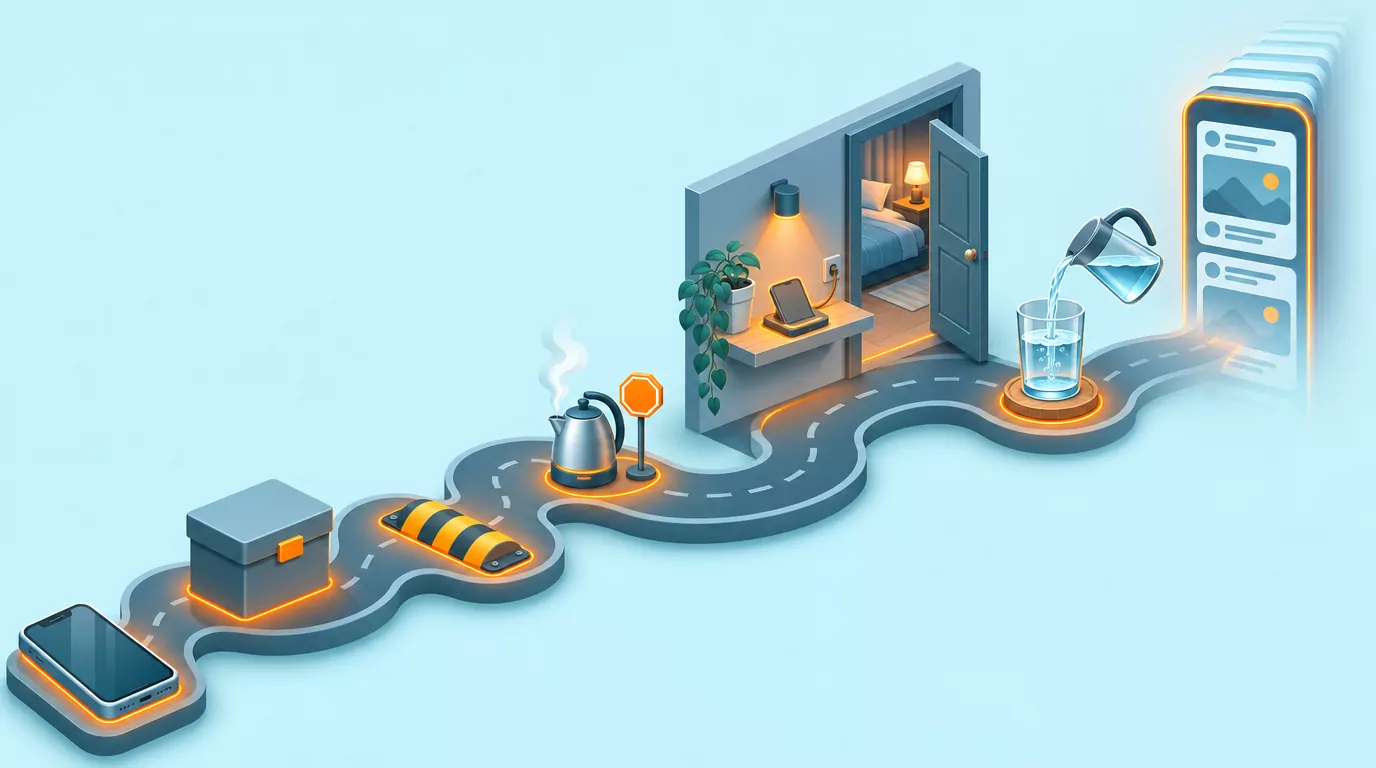
Make the trigger app a little harder to reach. Move it off the home screen, into the App Library on iPhone or the app drawer on Android. Sign out so each visit needs a password, or delete the app for a week and use the clunkier browser version.
Grayscale helps too, because a gray feed is less rewarding to look at. For layout and grayscale setup, see the guide to a calmer one-page home screen. Many sessions also start with an alert, so it is worth cutting the notifications you do not need.
Use built-in limits as a speed bump, not a wall
On iPhone with iOS 27, go to Settings, Screen Time, Time Allowances to set how long you can use categories such as Social Media. Screen Time Schedule, in the same menu, sets when those apps are available. Older iOS versions call these App Limits and Downtime.
On Android, go to Settings, Digital Wellbeing, App timers, and tap Set timer next to an app. When time runs out, the app closes and its icon dims until midnight. Focus mode pauses the apps you choose and can run on a schedule.
These limits are easy to skip. Unless you set a Screen Time passcode or an App limits PIN, you can turn them off in Settings in a few taps, and Focus mode even has a Take a break button. Their job is to break autopilot and make you choose, so pair them with the other exits.
Pick a stopping point before you open the app
Decide the ending before you start: one article, a timer, or the time it takes to make a cup of tea, a limit the Mental Health Foundation suggests. For the timer, the Mayo Clinic release gives an example limit of 15 to 20 minutes of scrolling, twice a day.
Add a mood check too. Dr. Sawchuk suggests looking up from the feed every 5 to 10 minutes and noticing how you feel.
Feeling worse is worth paying attention to, he says, though it does not mean you have to stop right away. If a second check 5 or 10 minutes later feels worse again, that is telling you something. Treat that second dip as your cue to stop.
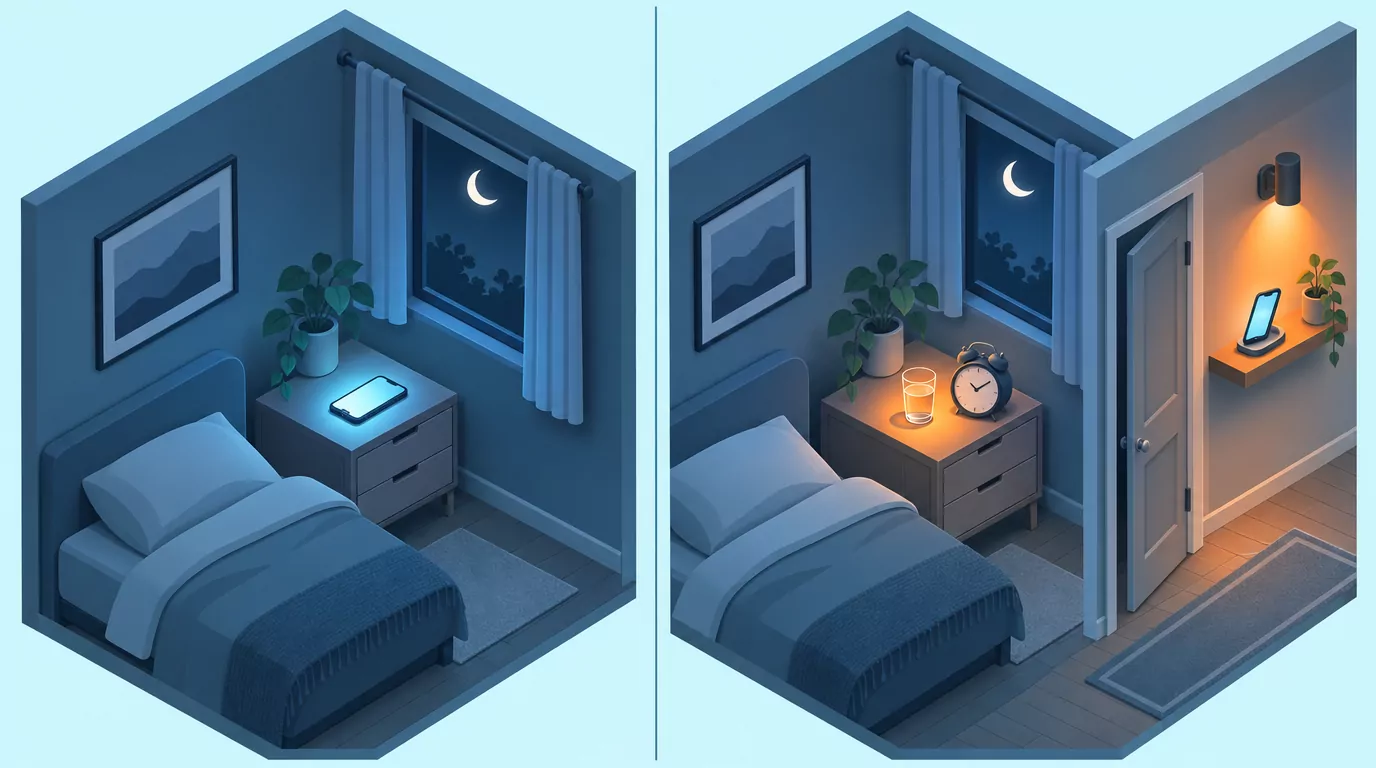
Charge the phone outside the bedroom
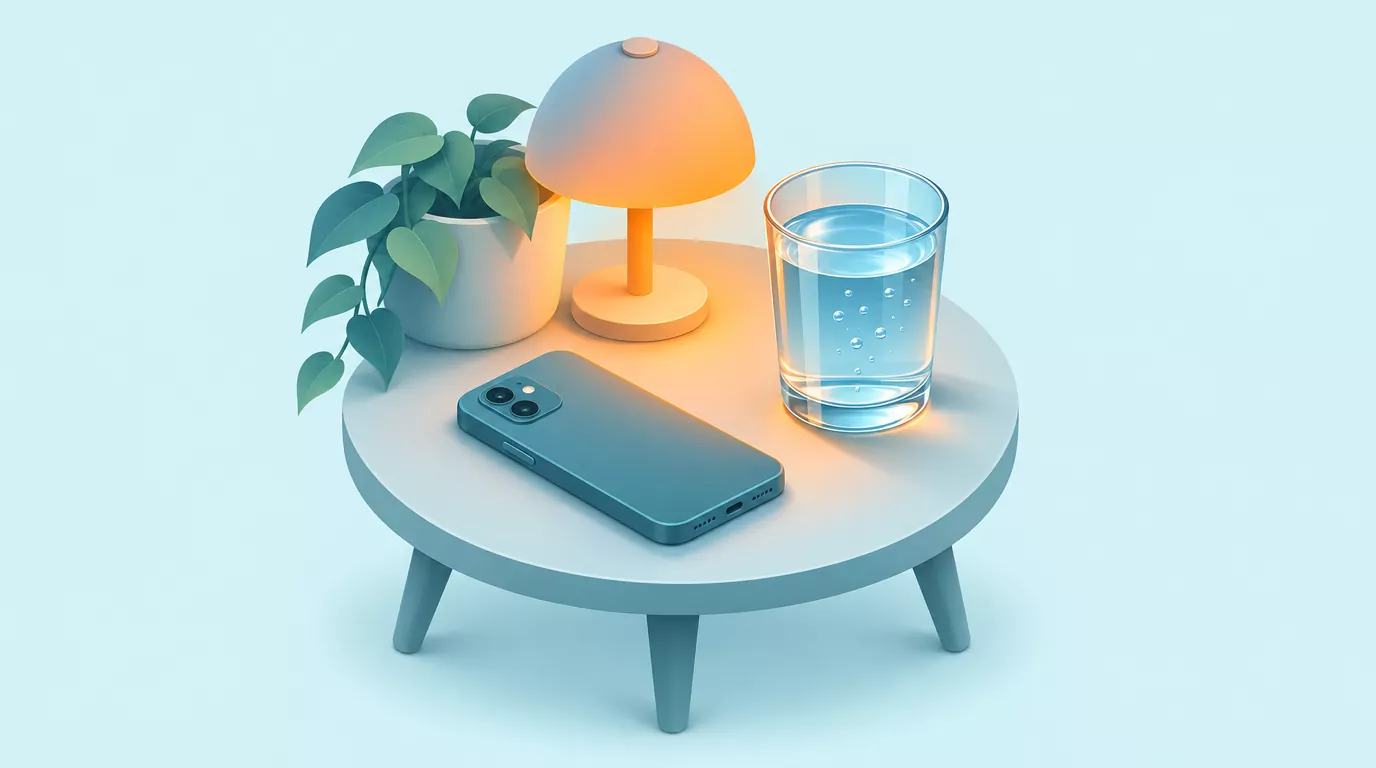
For many people, bed is where "one more swipe" runs longest. The Mental Health Foundation suggests one reason: the phone doubles as the alarm clock. So charge the phone in the kitchen or the hall, and wake up to a cheap alarm clock or a watch. That protects the morning too, because the first thing you reach for is no longer a feed.
The Sleep Foundation recommends removing electronic devices from the bedroom and keeping the hour before bed free of screens. If the phone has to stay, schedule Bedtime mode on Android or a Screen Time Schedule on iPhone.
Put a small glass of water on the nightstand where the phone used to sit. That much is fine at bedtime, as the guide to drinking water at night explains.
Keep a replacement action within reach
The urge needs somewhere to go. Instead of doomscrolling, give it a small physical action that ends by itself:
- Refill a glass of water.
- Stretch for one minute.
- Step outside for two minutes.
- Read one page of a paper book.
- Text one actual person instead of reading strangers.
Tie it to the moment with a habit stacking line: "When I put the phone down, I refill my glass." For a fully screen-free evening, a printable water tracker on the fridge does the counting on paper.
Give the news a container
If news pulls you in, give it set times and a source that ends: one or two fixed check-ins a day. Read a daily briefing, a newsletter or a print paper, since each has a last page.
Then tidy the feed, as the Mental Health Foundation suggests: mute or unfollow accounts that reliably leave you worse. Before another refresh, ask two questions the Mayo Clinic release poses: can I do anything about this, and does it help me plan?
Staying informed is fine. The goal is to know the news, not to live inside it.
When you slip back into the feed
Slips are expected, so treat one as information. Which moment beat which exit? Adjust only that exit.
After two weeks, recheck Screen Time or Digital Wellbeing. Compare your pickups with your first week, not with zero. The guide on how long it takes to form a habit has realistic timelines. For fewer moving parts in general, see simple living.
Frequently Asked Questions
What is the difference between mindless scrolling and doomscrolling?
Mindless scrolling is autopilot browsing of anything at all. Doomscrolling is when the feed is mostly bad news or outrage and you keep going while feeling worse. The same exits work for both.
Why is it called doomscrolling?
"Doom" stands for the bad news and "scrolling" for the swipe. Dictionary.com dates the first recorded use to 2016. A 2026 Mayo Clinic release links the word's spread to 2020 and the early pandemic news cycle.
Is doomscrolling bad for you?
It can be. A 2023 study in Applied Research in Quality of Life by Satici and colleagues linked doomscrolling with lower life satisfaction and wellbeing, through psychological distress. That finding came from 460 adults in Türkiye recruited online, averaging about 24 years old, and the authors call the design cross-sectional, so it shows a link, not a cause. How you feel afterward is the better guide.
What can I replace mindless scrolling with?
Something short and physical: refill a glass of water, stretch, step outside or text a friend. The replacement exit above has the full list.
How can I get help if I cannot stop scrolling?
Start with the setup changes here and give them two weeks. This article is general wellness information, not medical advice: if scrolling is crowding out sleep, work or relationships, or comes with ongoing anxiety or low mood, talk to a doctor or a mental health professional.
A phone that ends when you do
Measure first, add friction to the trigger apps, pick an ending before you open the feed and charge the phone outside the bedroom. That is how to stop doomscrolling without a nightly fight.
It helps when the apps you do open have an end. Water Goose is one example: a hydration tracker you open, log a drink in three steps and close, with no feed to fall into. Entries are stored locally on your device with no account needed, and in the words of its privacy policy, "The app shows no ads." The goose will keep count.
Water Goose is on the App Store for iPhone and on Google Play for Android.